Fake bank balance app: a look-alike bank account for videos and skits


 · 5 min read
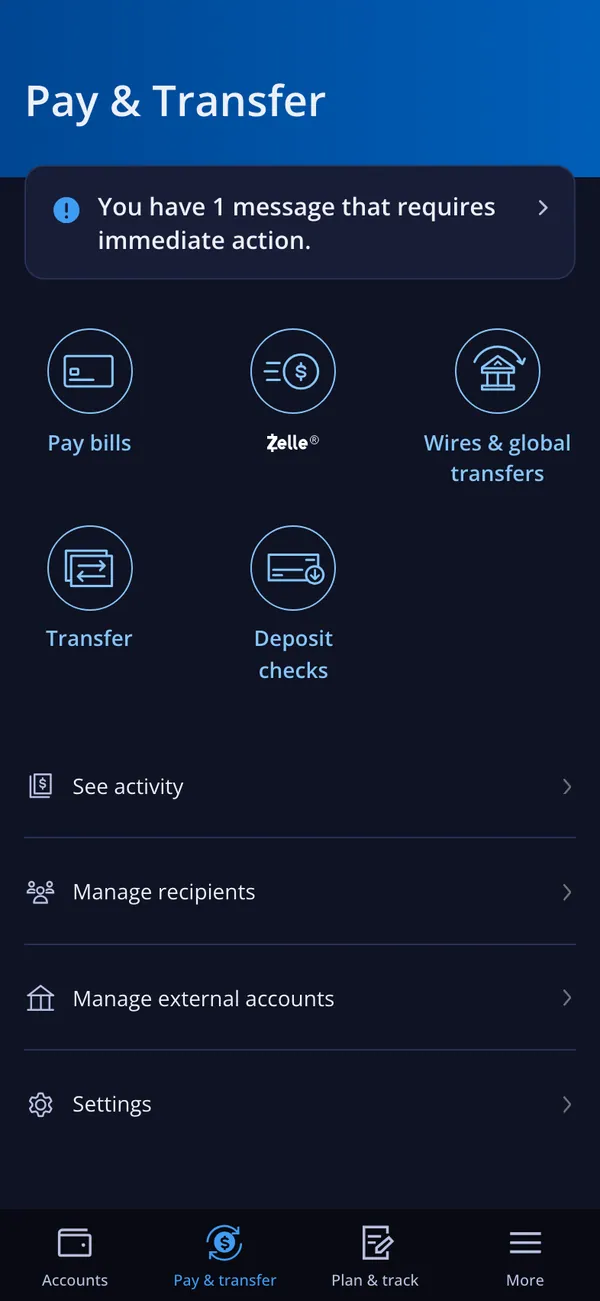
What a fake bank balance app includes
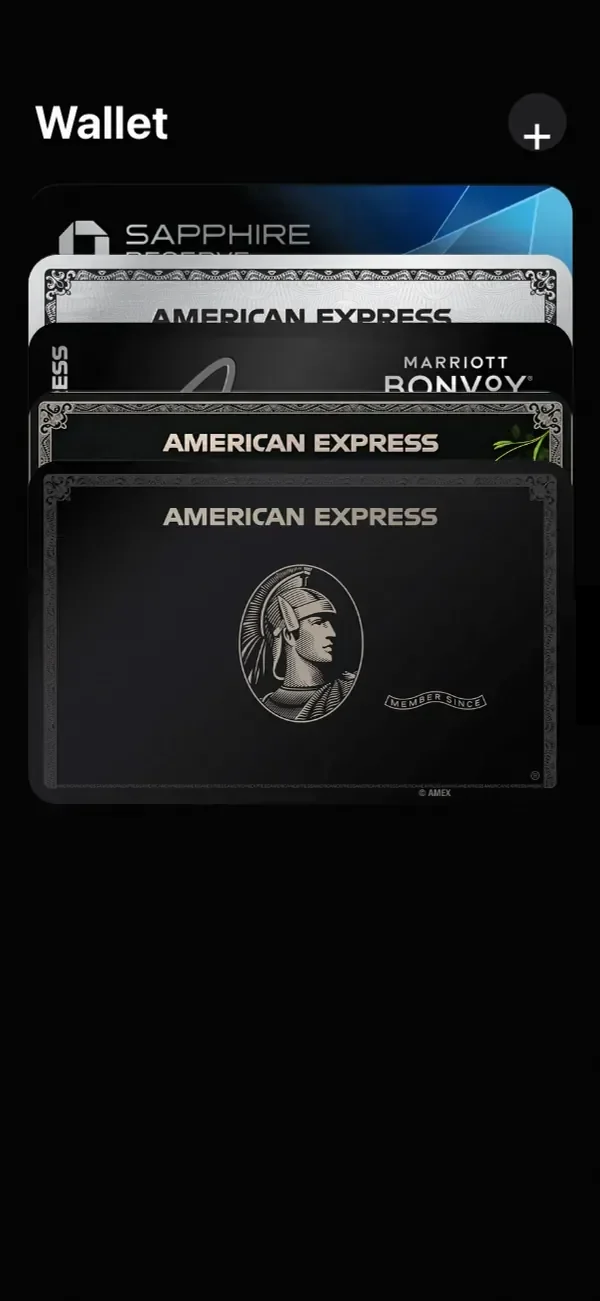
MaxLarp covers six banks and Cash App. Each one has its own page, so you pick the one that fits your character:
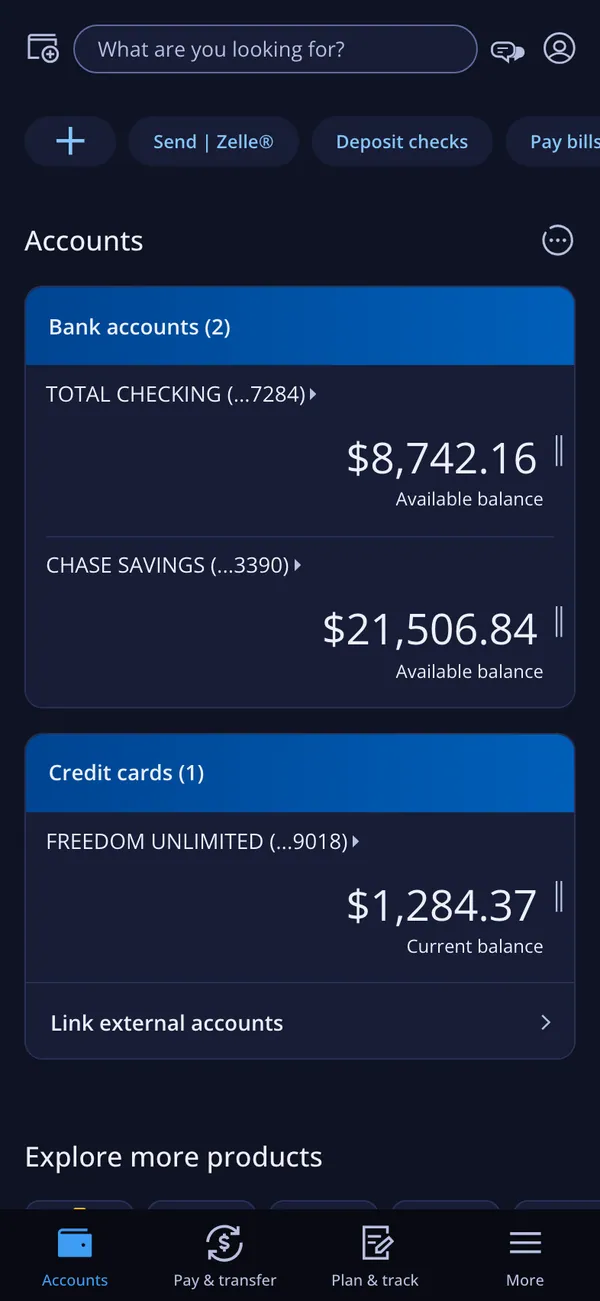
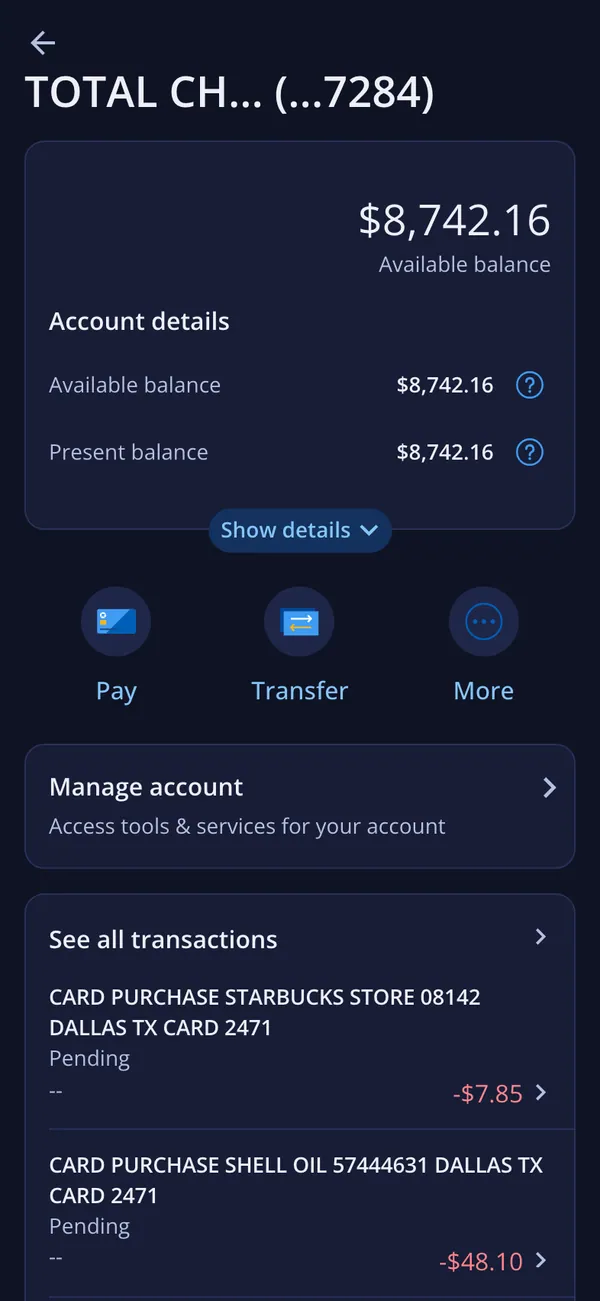
- Chase: checking and savings, cards and activity, and a Plan screen.
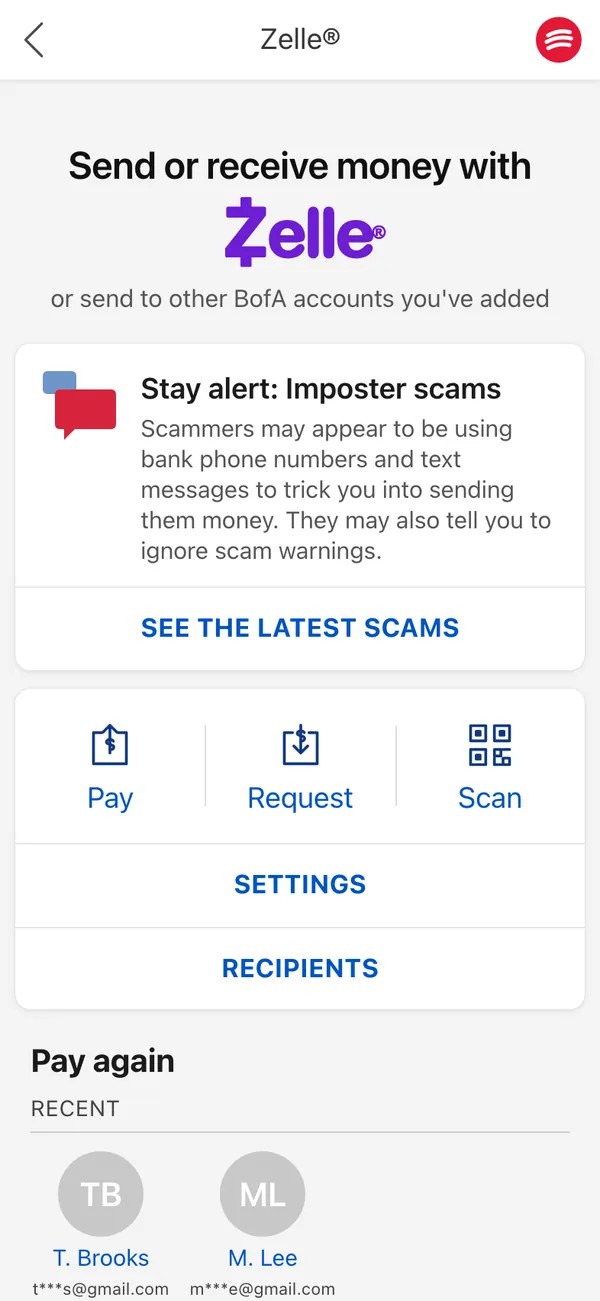
- Bank of America: checking and savings, Zelle and deposits, and an invest screen.
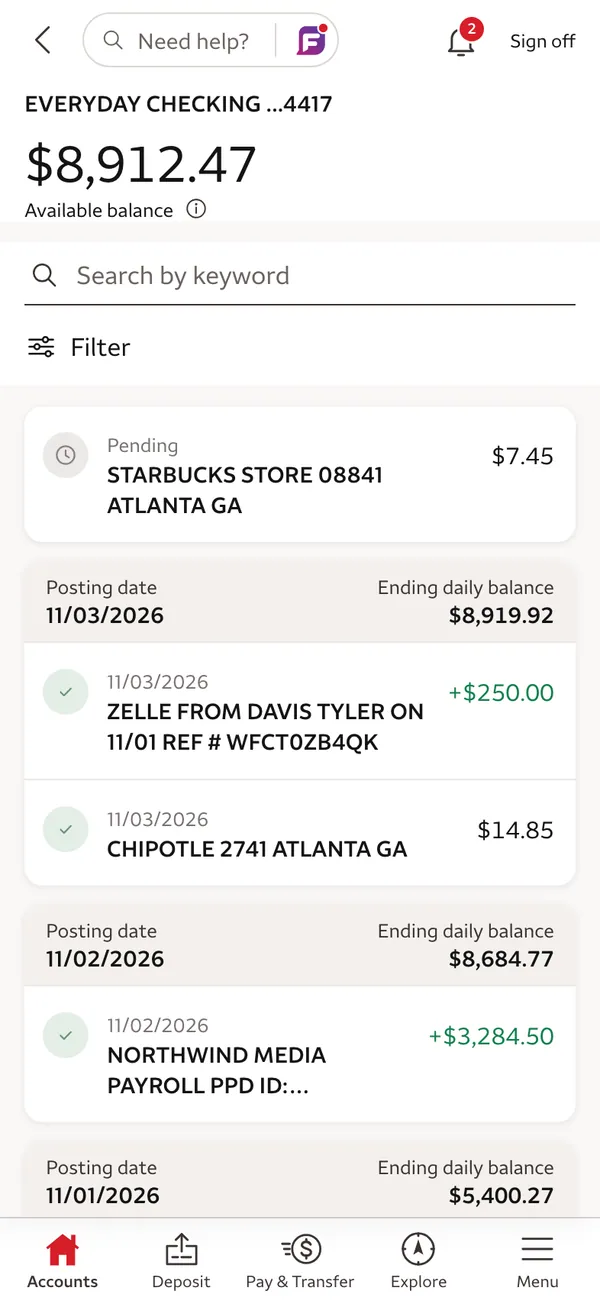
- Wells Fargo: checking and savings, activity, and Zelle and deposits.
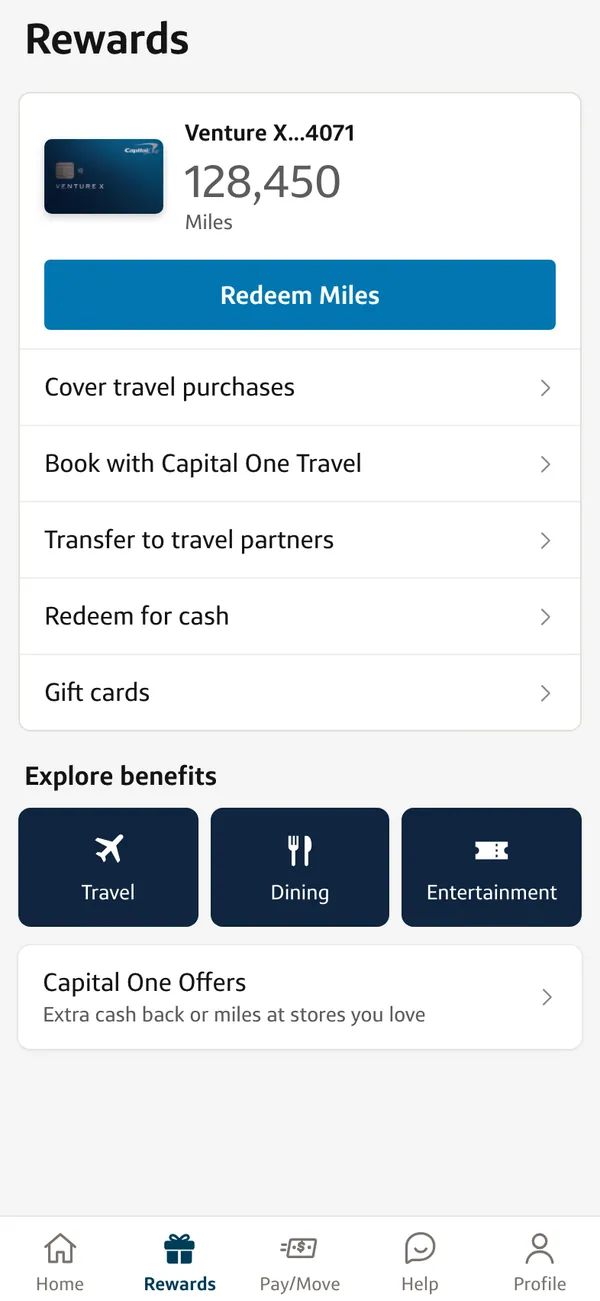
- Capital One: Venture X and more, rewards and bill pay.
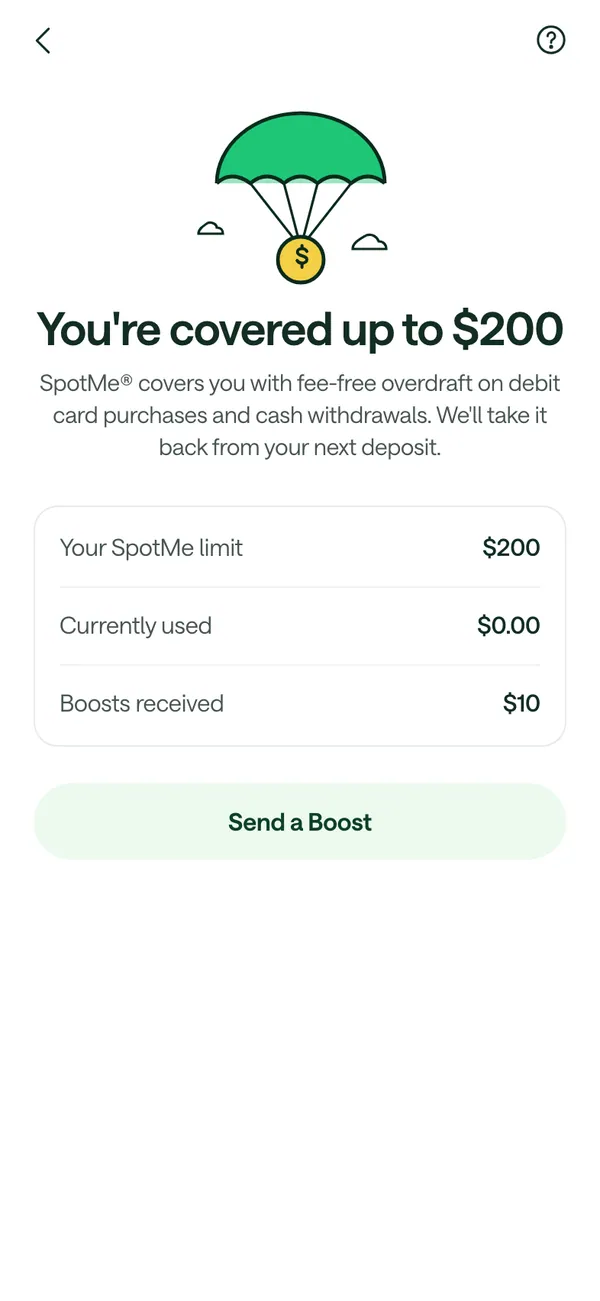
- Chime: checking and savings, MyPay and SpotMe, and activity.
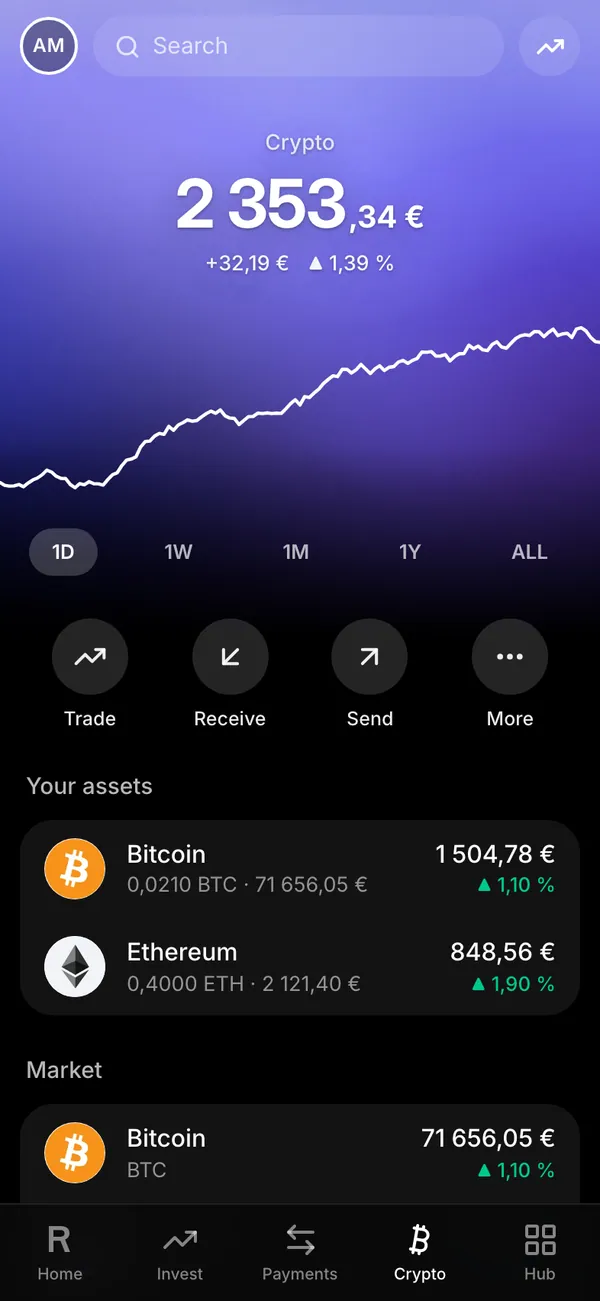
- Revolut: accounts and cards, stocks and crypto, and the hub.
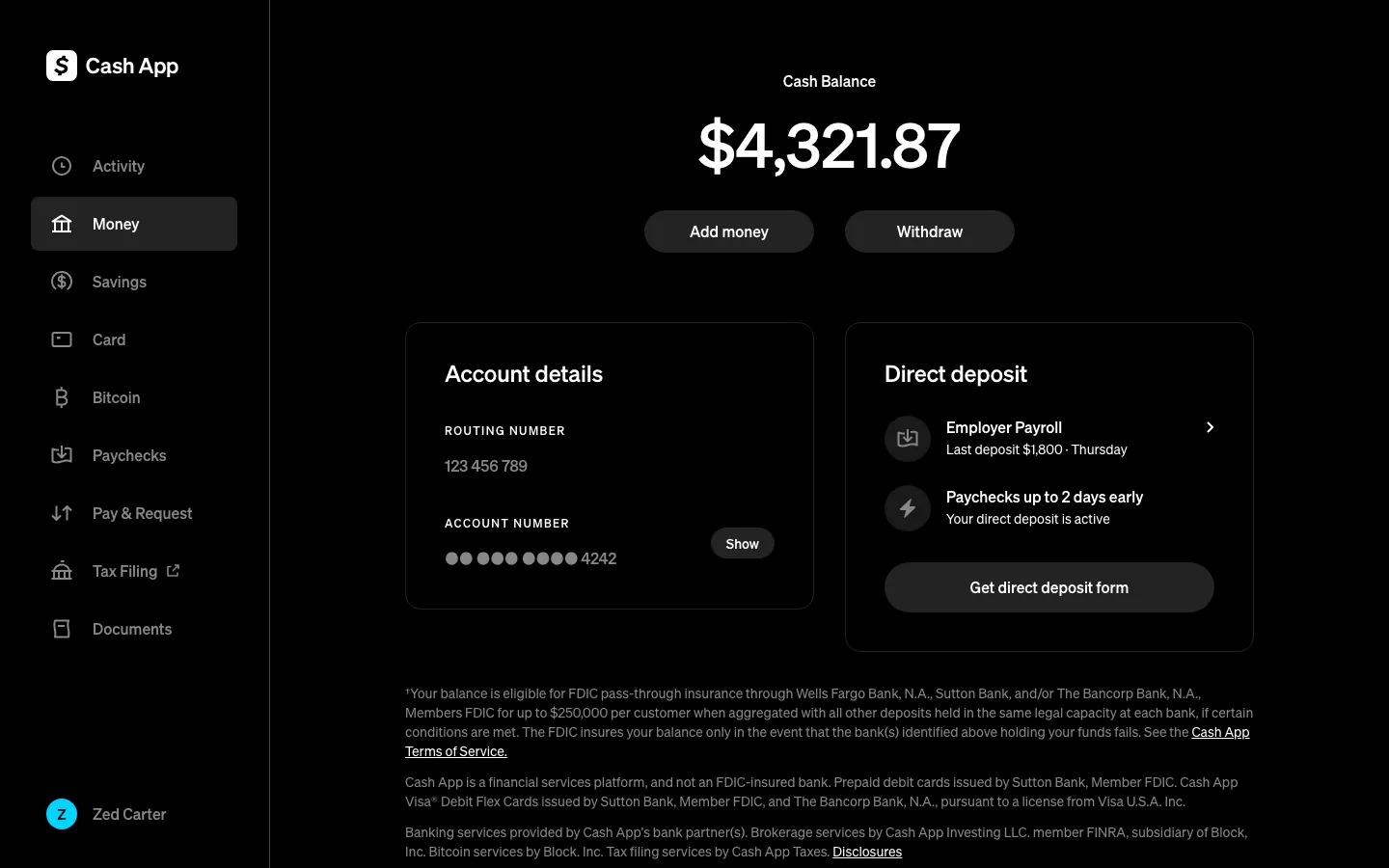
- Cash App: balance and activity, Bitcoin and savings, and a card. It runs on desktop and iPhone.
The six bank apps are phone apps. Install one to your iPhone home screen and it sits there with its own icon, the same way a real bank app does. Cash App is the exception, because it also runs in a desktop browser with the real address showing in the frame.
Videos that need a bank screen
A bank balance tells a story fast. A viewer reads an account name and a number in a second, so a short scene does not need a long explanation. These scenes use the screen well:
- A payday reel where a direct deposit appears in the activity feed on the Chime app.
- A skit about splitting a dinner bill, where the balance drops by a small amount after the payment.
- A money explainer that walks through checking, savings and cards in one app, shot on Chase.
- A film scene where a character looks at a balance before a hard decision.
- A travel recap on Revolut, with card spending from a trip filling the list.
It is a prop for the camera, not proof of anything. A balance on a screen says nothing about a real account, so do not show one to a landlord, a lender, an employer or anyone who would be asked to trust it.
Set up a fake bank balance app
Set up the character first, then each bank. The bank screens read as one story when they share a name, a city and a currency.
- 1Set up your persona once: name, photo, city and currency. Every MaxLarp app then uses the same character.
- 2Open the page for the bank that fits the story, such as Chase or Chime, and install it to your iPhone home screen.
- 3Type the balance for checking, savings or cards, or start from a preset and edit the numbers.
- 4Fill the activity feed with a handful of payments in and out, so the list looks lived in.
- 5Choose live mode if a payment should arrive on its own during a take, or static mode to freeze every number.
- 6Allow notifications. They need iOS 16.4 or later and the app on your home screen.
- 7Rehearse the take once, then screen-record the phone or film it with a second camera.
The persona guide on this site walks through the full setup, so every bank screen in a story agrees with the rest.
What makes a bank screen read as real on camera
Most bank screens fail on small details, not on the big number. These checks take a few minutes and save a retake.
- Use a balance that fits the character. A student with a large balance needs a reason, such as a recent windfall.
- Fill the feed with small payments. Real activity is mostly food, transport and split bills, with the occasional larger payment.
- Make deposits regular: the same amount on the same weekday, once or twice a month.
- Use irregular amounts such as 47.13 instead of round numbers such as 50.00. Round numbers look typed.
- Keep the currency the same across every app the persona uses. A euro figure beside a dollar app is the first thing a careful viewer notices.
- Hold the balance on screen for about two seconds so the eye can read it before the cut.
- Turn on Do Not Disturb and allow only the alert you plan to show. One real message in the middle of a take breaks the spell.
- Check the home screen before you film. A personal notification or a real banking app in the frame undoes the whole scene.
A short shot list for a bank scene
A bank scene runs on four shots. Each one is only a few seconds, so the whole sequence edits into a quick, confident beat.
- 1The phone home screen, with the bank icon tapped in the first second.
- 2The balance, held still for two seconds with the account name visible.
- 3The activity feed, scrolled slowly, with a payment landing near the top.
- 4A close-up of the character's face as they read the number. The reaction carries the feeling, and the screen supplies the fact.
Shoot each shot twice and keep the calmer take. Calm reads as honest, and an honest-looking screen is what makes the joke or the drama land.
The apps in this post
 from$9.99
Chase
Accounts, cards and Zelle
Mobile9:419:419:41 from$9.99
Bank of America
Accounts, cards and Zelle
Mobile9:41 9:41
 9:41
 from$9.99
Wells Fargo
Accounts and rewards
Mobile9:41 9:41
 9:41
 from$9.99
Capital One
Credit, checking and savings
Mobile9:41 9:41
 9:41
 from$9.99
Chime
Checking, savings and MyPay
Mobile9:41 9:41
 9:41
 from$9.99
Revolut
Multi-currency money app
Mobile9:41 9:41
 9:41
Questions
Is a fake bank balance app connected to a real bank?
No. Nothing connects to Chase, Bank of America or any other bank, and no money can move. The balances, cards and activity are fictional and come from the persona you set up in MaxLarp. MaxLarp is not affiliated with any bank it imitates.
Which banks does MaxLarp cover?
Chase, Bank of America, Wells Fargo, Capital One, Chime and Revolut, plus Cash App. Each one has its own dashboards page. The six bank apps are phone apps, and Cash App also works in a desktop browser.
Should I enter a real bank login or account number?
No. Use a made-up persona and never type a real login, account number or card number into any field. The screens need none of those details, and entering real ones would put your own account at risk.
Is a fake bank balance app legal?
As a prop in a video or skit, it is ordinary content making. Using a screen to deceive someone in a real deal, such as a rental, a loan or a payment, is not allowed under the Acceptable Use Policy. This is not legal advice.
Every number on MaxLarp is fictional. Not affiliated with any brand shown. Acceptable use