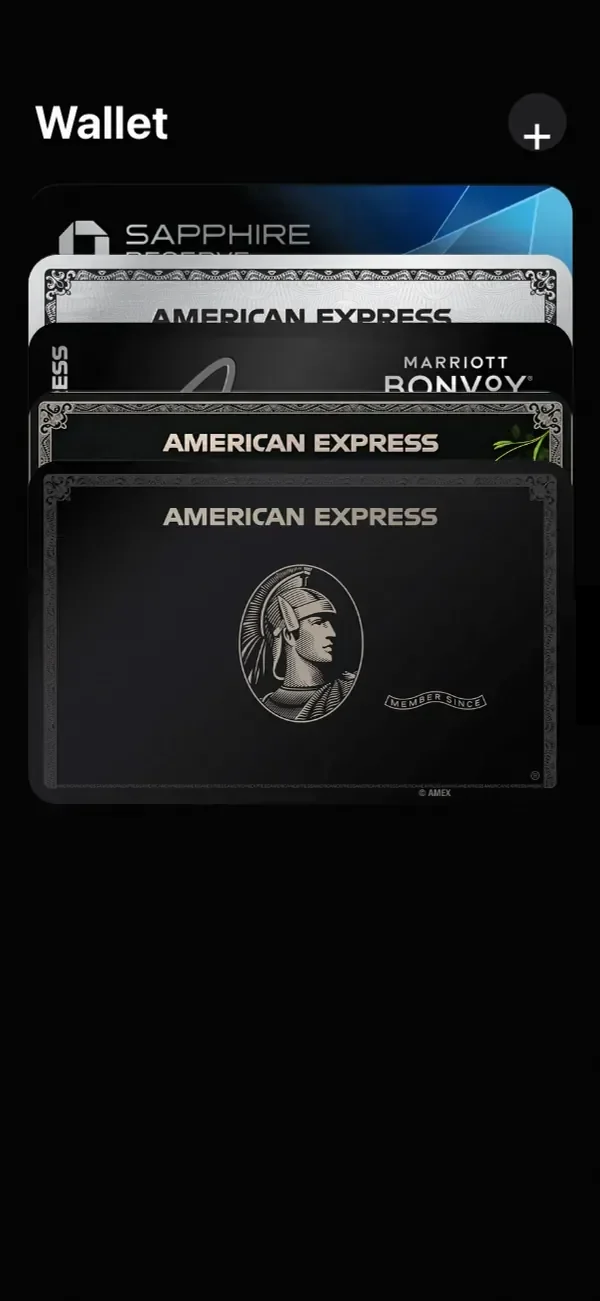
Fake Chase bank account: a Chase balance screen for videos
 · 4 min read
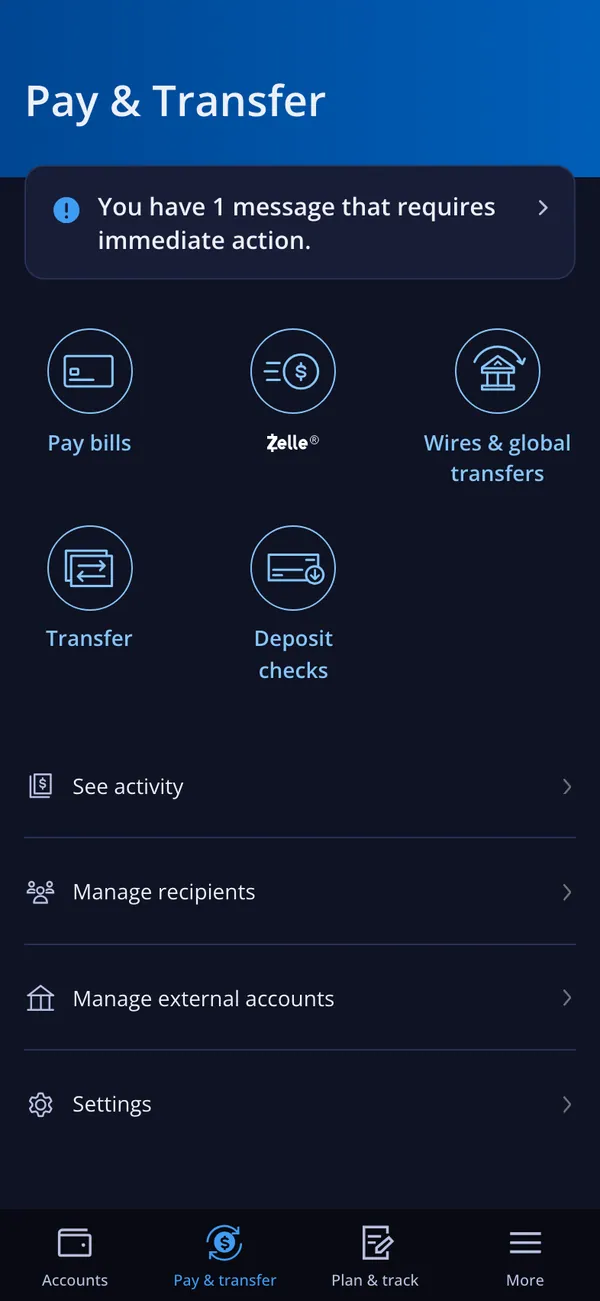
What the fake Chase app includes
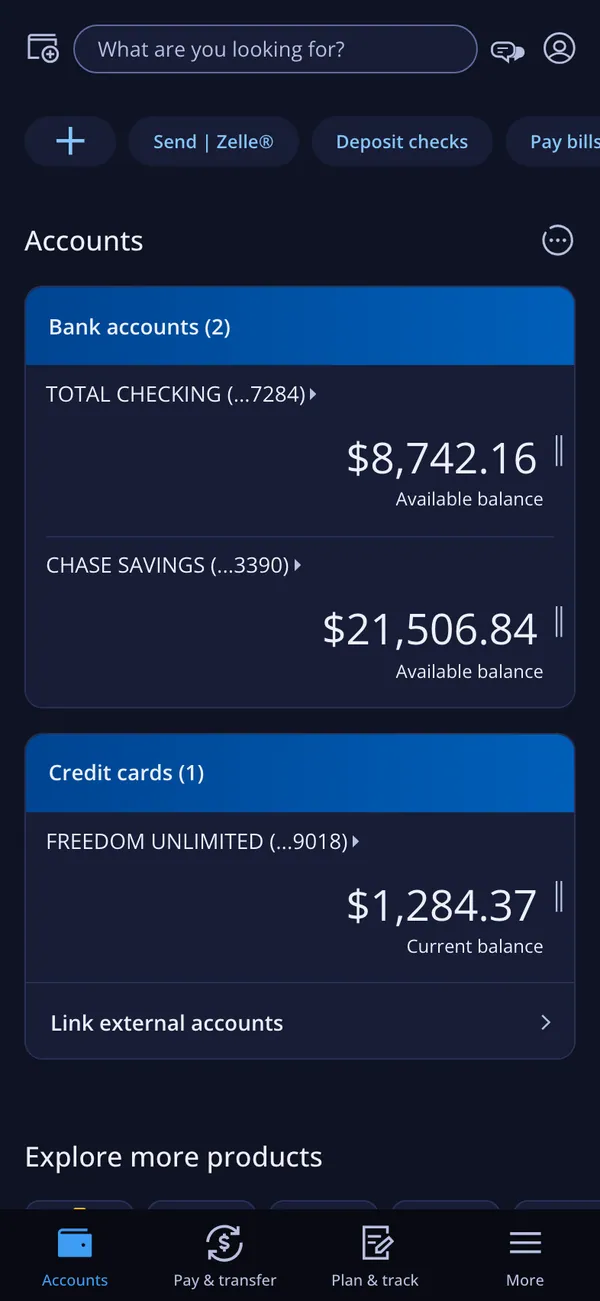
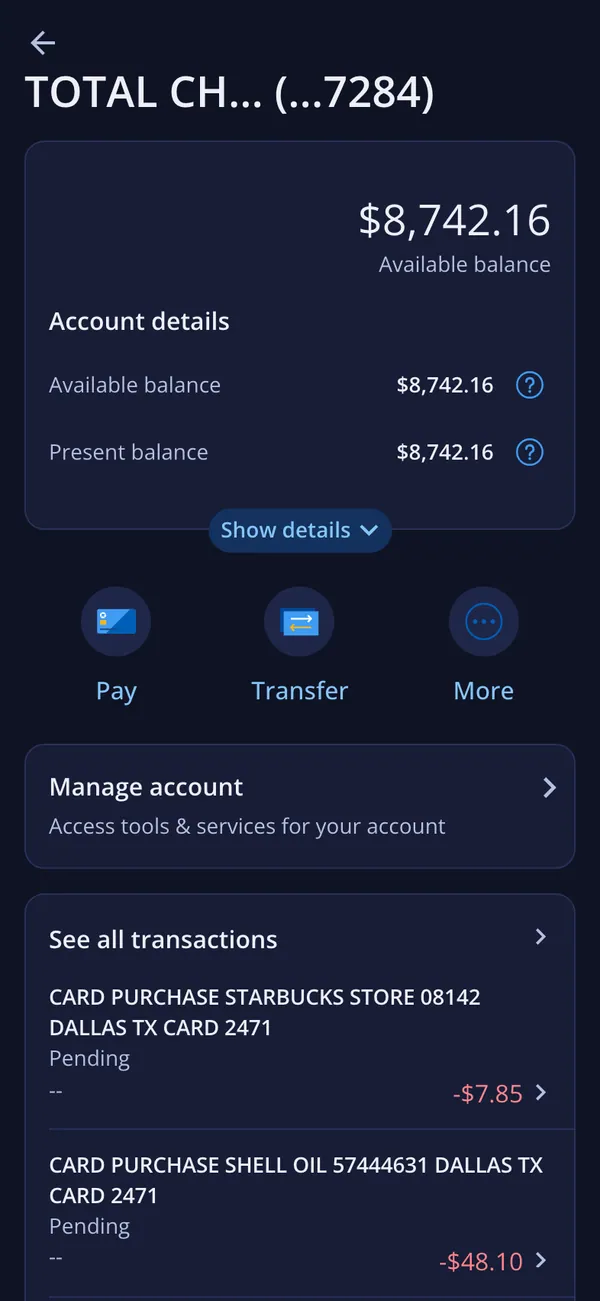
The fake Chase app is a phone app. It installs on your iPhone home screen with its own icon, and it has three areas worth filming:
- Checking and savings, the accounts screen with each balance and the total.
- Cards and activity, with the card view and a running list of payments in and out.
- A Plan screen, for a budgeting or saving scene where the goal is the point of the shot.
There is no desktop version of the Chase app in MaxLarp. If a shot needs the app in a laptop frame, skip it and film the phone in portrait instead. Portrait is how most viewers watch, and the app's layout is built for a phone screen.
Videos where a Chase account earns its place
Chase is one of the best-known banks in the United States, so viewers recognise the layout at once. That makes it a fast prop for everyday money scenes, where the audience needs to understand the situation in a second.
- A budgeting reel that opens on the Plan screen and shows a savings goal moving toward its target.
- A first-job story where the checking balance rises after the first direct deposit.
- A skit about rent day, where a transfer lands and the balance drops to almost nothing.
- An explainer on the difference between checking and savings, shot on the accounts screen.
It is a prop for the camera, not proof of anything. Do not show it to a landlord, a lender or an employer, and do not use it to ask someone to send money.
Set up a fake Chase bank account
Setup takes a few minutes once the persona exists. The steps below build the account in the order a viewer will see it, from the first number to the first alert.
- 1Set up your persona: name, photo, city and currency. The Chase app takes the same details as every other MaxLarp app.
- 2Open the Chase page on your iPhone and add it to your home screen.
- 3Type the checking and savings balances, then the card balance if the scene needs it.
- 4Add a few weeks of activity: a paycheck, a grocery run, a transit top-up and one or two card payments.
- 5Choose live mode if a payment should land during the take, or static mode to hold every number still.
- 6Allow notifications. They need iOS 16.4 or later and the app installed on the home screen.
- 7Rehearse the take, then film it with your phone's screen recorder or a second camera.
The persona guide explains how the Chase balance fits the other apps in the same story.
Make the account look like it belongs to someone
A bank account is easy to fake on the first screen and hard to fake across three. These checks keep the whole account consistent.
- Match savings to the story. A small checking balance with a larger savings balance says someone is saving on purpose. The reverse needs a reason.
- Keep the activity ordinary. Most rows should be small: coffee, a streaming service, a phone bill, or a friend paying back a dinner.
- Space the deposits. A paycheck on the same weekday every two weeks feels real, and a random lump does not.
- Use irregular amounts. 212.46 reads as real, while 200.00 reads as typed.
- Check the card view before you film. The cardholder name should match the persona in your other apps.
- Put the phone on Do Not Disturb so only the alert you chose appears on camera.
A consistent account takes a few minutes to set and saves a reshoot later. Once the balance and the feed agree, the screen holds still under close inspection.
A short shot list for a Chase scene
Chase scenes are short, so plan four shots and let each one carry a single fact.
- 1The home screen, with the Chase icon tapped in the first second.
- 2The accounts screen, with the checking balance held still for two seconds.
- 3The activity list, scrolled slowly, with a payment landing near the top.
- 4A close-up of the character's face as they read the number.
Shoot each one twice and keep the calmest take. The screens supply the facts. The reaction supplies the feeling, and that is what makes a small everyday balance feel like a story.
Open Chase

Questions
Is the fake Chase bank account connected to Chase?
No. The balances, cards and activity are fictional and come from the persona you set up. Nothing connects to Chase, and MaxLarp is not affiliated with it.
Can I use a real Chase login or account number?
No. Use a made-up persona and do not type real account details into any field. The screens do not need them.
Does the fake Chase app work on a computer?
No. The Chase app is a phone app in MaxLarp. Install it on your iPhone home screen and film the phone.
Can the fake Chase app show payment alerts?
Yes, with live mode on, once the app is on your home screen and notifications are allowed. The alerts are fictional and appear only on your phone.
Every number on MaxLarp is fictional. Not affiliated with any brand shown. Acceptable use