How to screen record a fake dashboard so it looks real on camera

 · 4 min read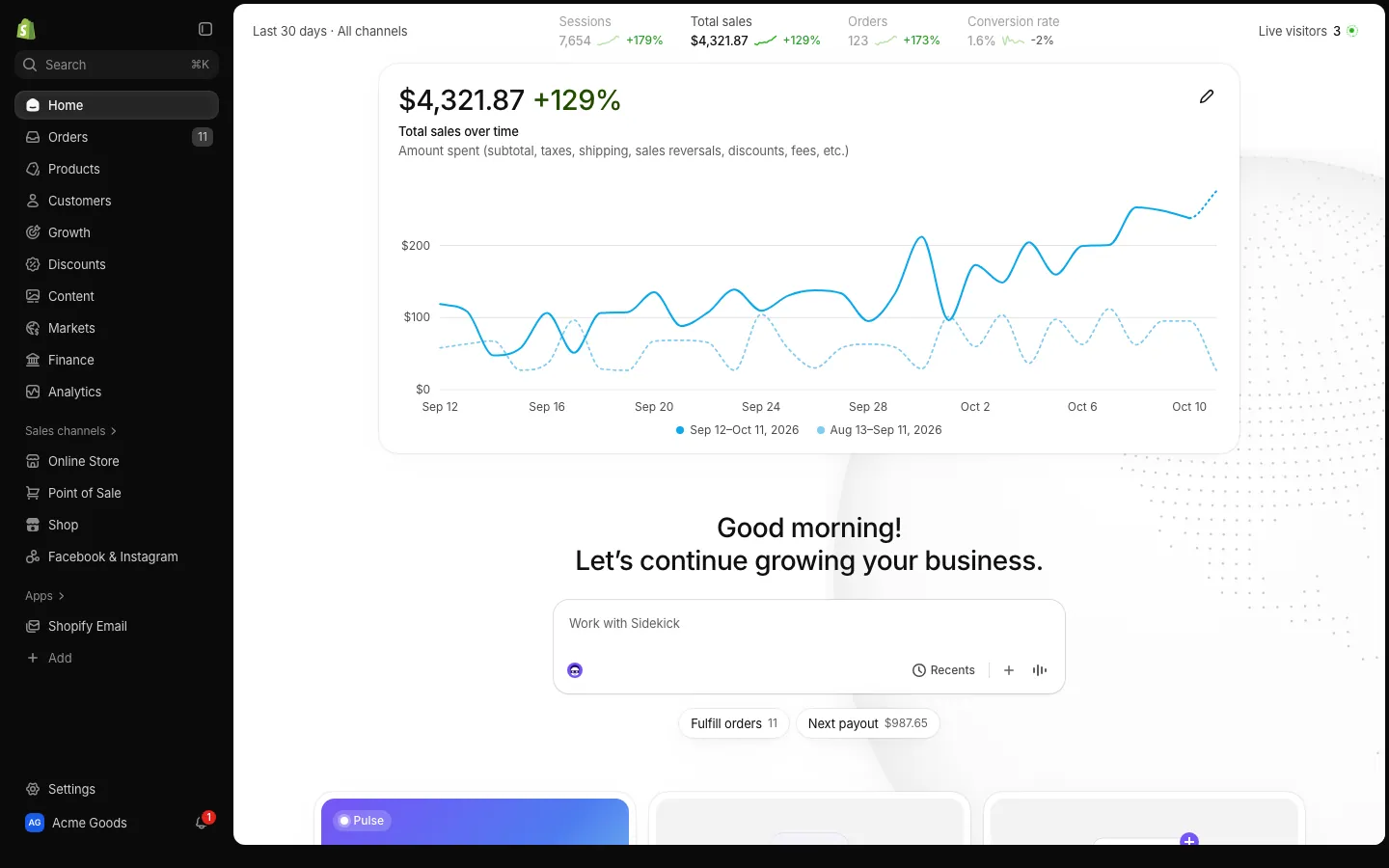
Choose how you will capture it
You have two options. A screen recording is cleaner: it captures the display directly, with no glare and no hands. Filming the phone with a second camera looks more natural for "check my phone" moments, because the viewer sees a real hand holding a real device. Many creators use both and cut between them.
MaxLarp does not record video itself. On iPhone you use the built-in screen recording in Control Center. On a Mac you use the screenshot toolbar (Shift, Command and 5) or QuickTime. Either way the footage is just a recording of an app on your screen, the same as any other.
Set up the phone before you press record
Phone footage gets spoiled by small things that real life puts on a screen. Work through this list first:
- Charge the phone, or plug it in, so the battery icon is not red.
- Turn on a Focus mode that allows only the app you are filming, so a real text message cannot appear halfway through.
- Clear old notifications from the lock screen and close apps you do not need.
- Set auto-lock to a longer time and turn the brightness up.
- Check the status bar: strong signal, Wi-Fi on, nothing odd in the corner.
- Put the phone on the home screen with the fake app icon visible if you want to show it launching.
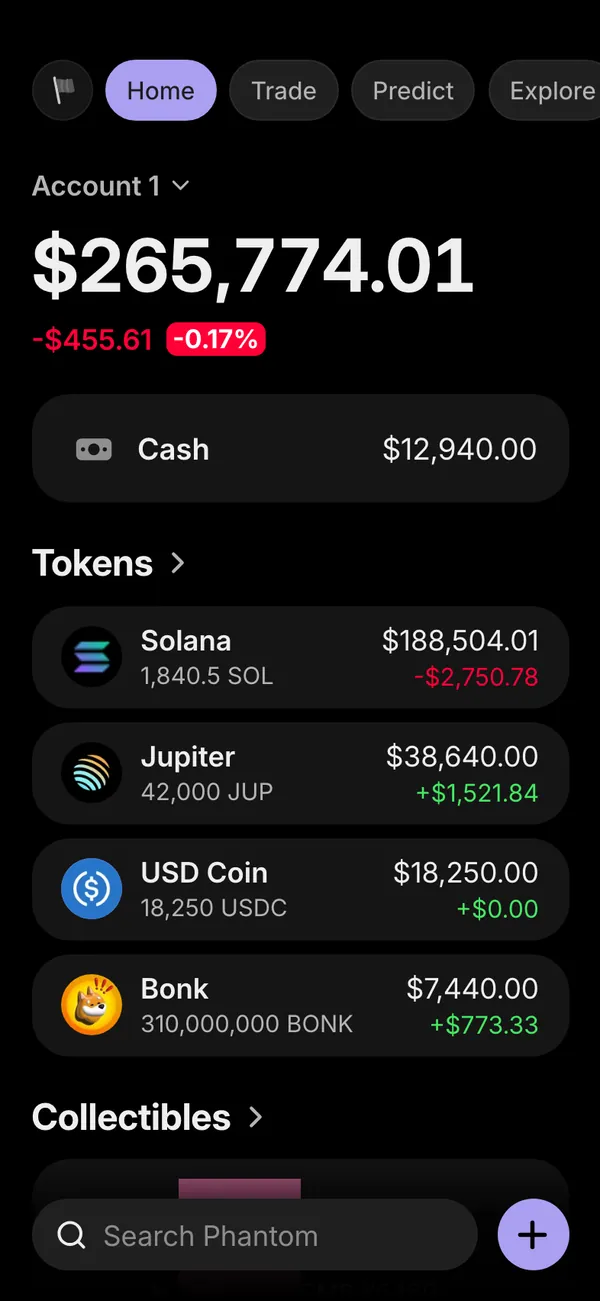
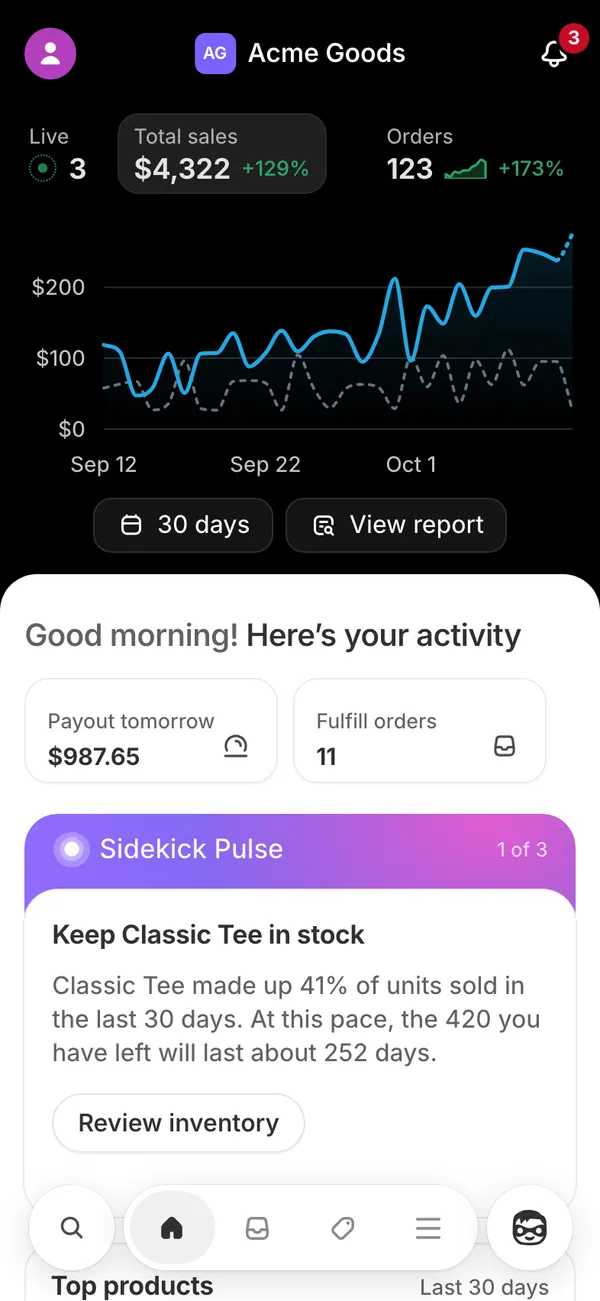
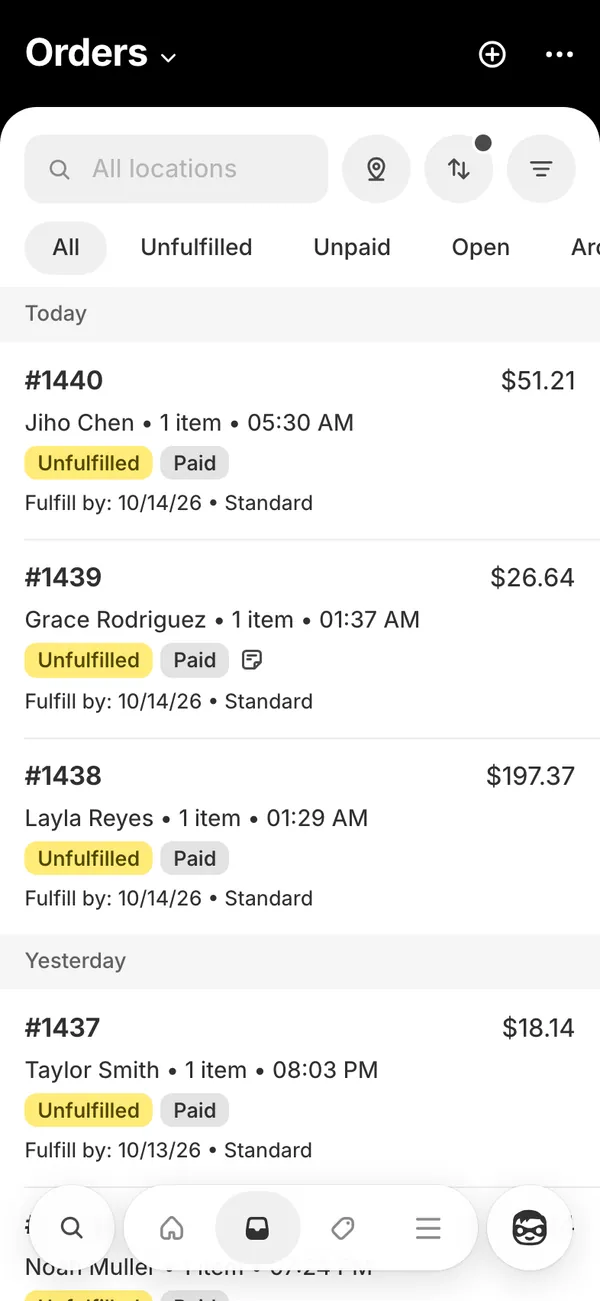
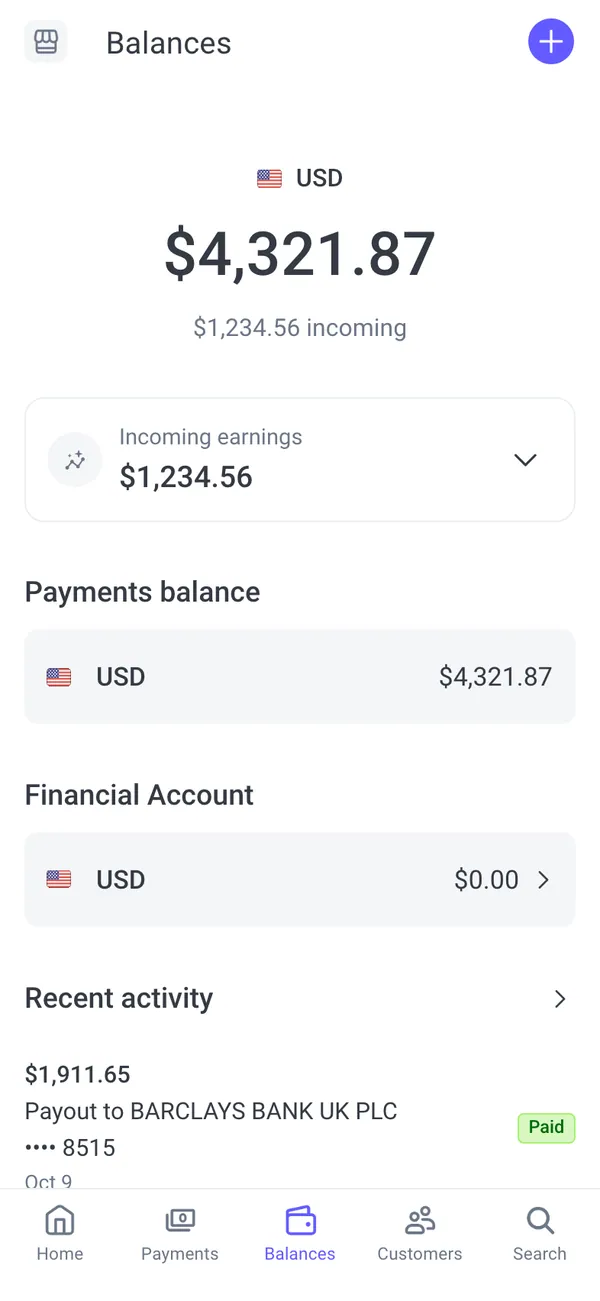
The Shopify phone app is a good example. It installs as its own app with its own icon, so the opening shot of tapping it from the home screen looks like any other app launch.
Set up a desktop browser
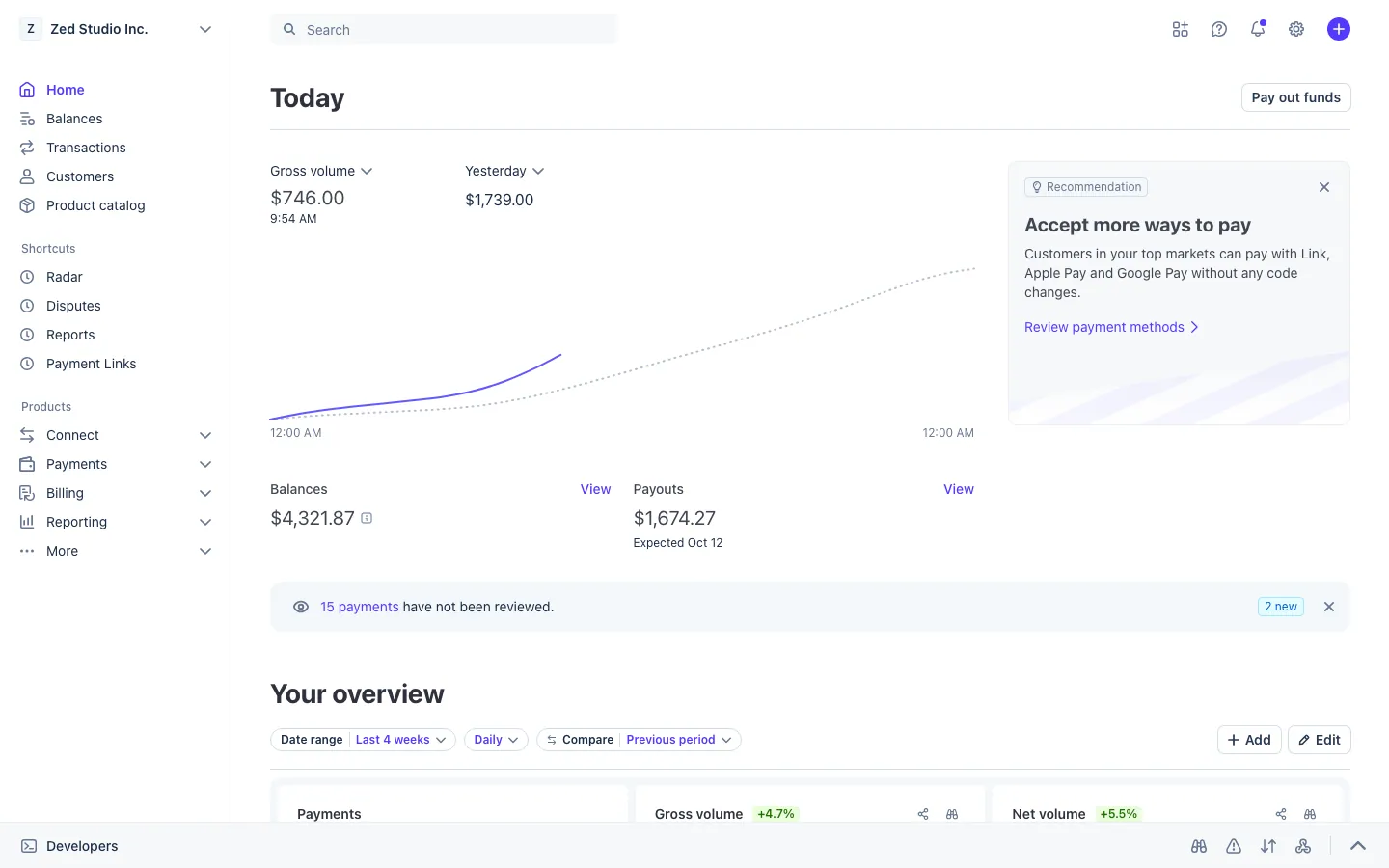
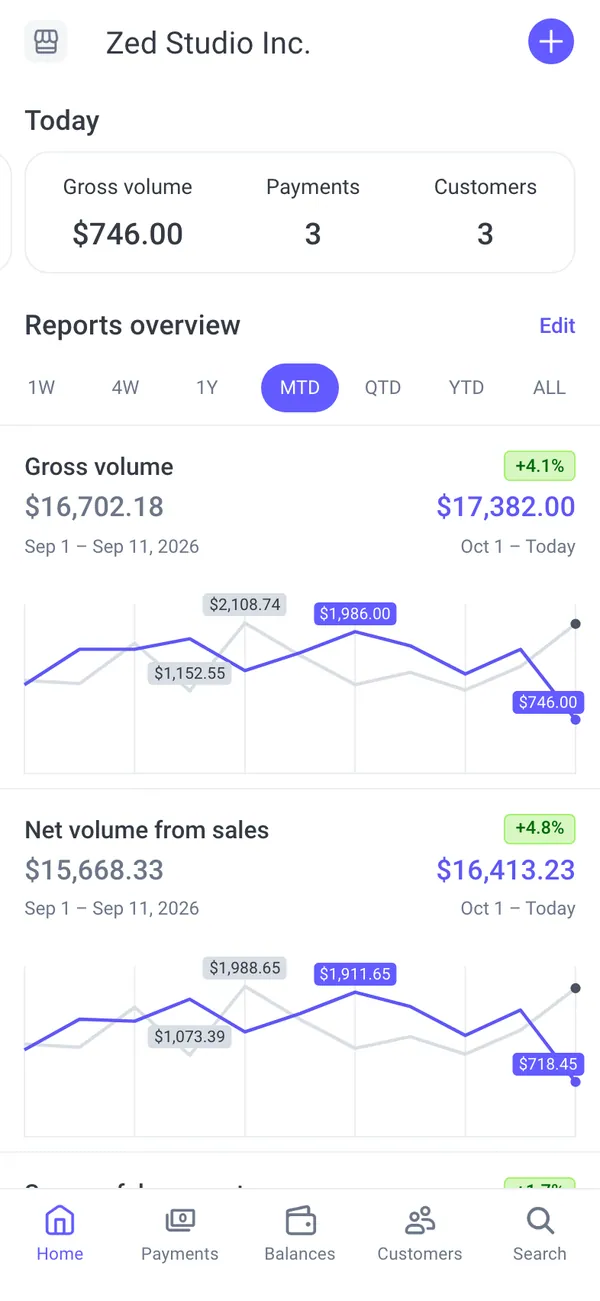
Desktop apps run in a browser with the real address in the frame, such as admin.shopify.com for Shopify or dashboard.stripe.com for Stripe. That detail does a lot of work, so protect it.
- Use a clean browser window, full screen, with the bookmarks bar hidden.
- Close extra tabs and pause extensions that show badges or pop-ups.
- Pick a zoom level where the main number is readable on a phone-sized video.
- Hide the Mac menu bar and the Dock if they show personal items.
- Log out of anything that would show your real name in a corner.
Get a live notification on camera
A notification arriving mid-take is the most convincing moment in any prop video, and it takes a little preparation.
- 1Update the iPhone to iOS 16.4 or later. Notifications for home-screen apps need it.
- 2Add the MaxLarp phone app to your home screen and allow notifications when it asks.
- 3Pick live mode so orders, payouts or alerts keep arriving. The live mode guide covers the options.
- 4Start the screen recording, lock the phone or leave it on the home screen, and wait for the banner to drop.
- 5Tap the notification to open the app, which gives you a natural cut into the dashboard.
Shopify plays its order sound on every sale, so leave your microphone on or add a sound bed that does not cover it.
Move the way a real person moves
Fake footage gives itself away through movement more than through pixels. People who really check a dashboard do not tap every tab. They open the home screen, look at one figure, scroll a little and glance at the chart. Copy that.
- Hold on the key number for about two seconds, then move on.
- Scroll in short, slightly uneven swipes, not a perfect glide.
- Visit two or three screens per take, not ten.
- Let the chart finish drawing before you cut away.
- Record a few extra seconds at the start and end so editing has handles.
Edit it so it holds together
Cut dashboard footage with other shots rather than leaving it on screen for a full minute. A wide shot of the desk, a hand on the keyboard or a clip from the Vault keeps the scene alive. Keep the story consistent between screens: if the store shows a busy morning, the Stripe payout should be in a similar range. The persona guide shows how to keep that consistent.
Say it is a prop when the context needs it. A short caption or a line in the voiceover is enough, and the responsible use guide explains when it matters.
The apps in this post


Questions
Can I screen record the fake dashboard on iPhone?
Yes. Use the built-in screen recording from Control Center while the MaxLarp phone app is open. Notifications also appear in the recording as long as your Focus mode lets that app through.
Does MaxLarp record video for me?
No. You capture the footage with your own phone or computer, so you control framing, timing and editing. The app only supplies the dashboard and the notifications to record.
How do I stop real notifications from showing up in the recording?
Turn on a Focus mode that allows only the app you are filming, and clear the lock screen first. Real texts and app alerts will then stay out of the take.
Why do my live notifications not arrive?
Check that the iPhone is on iOS 16.4 or later, that the app was added to the home screen and that you allowed notifications when asked. Notifications will not work from a normal browser tab.
Every number on MaxLarp is fictional. Not affiliated with any brand shown. Acceptable use