Fake apps on iPhone home screen: each one gets its own icon

 · 3 min read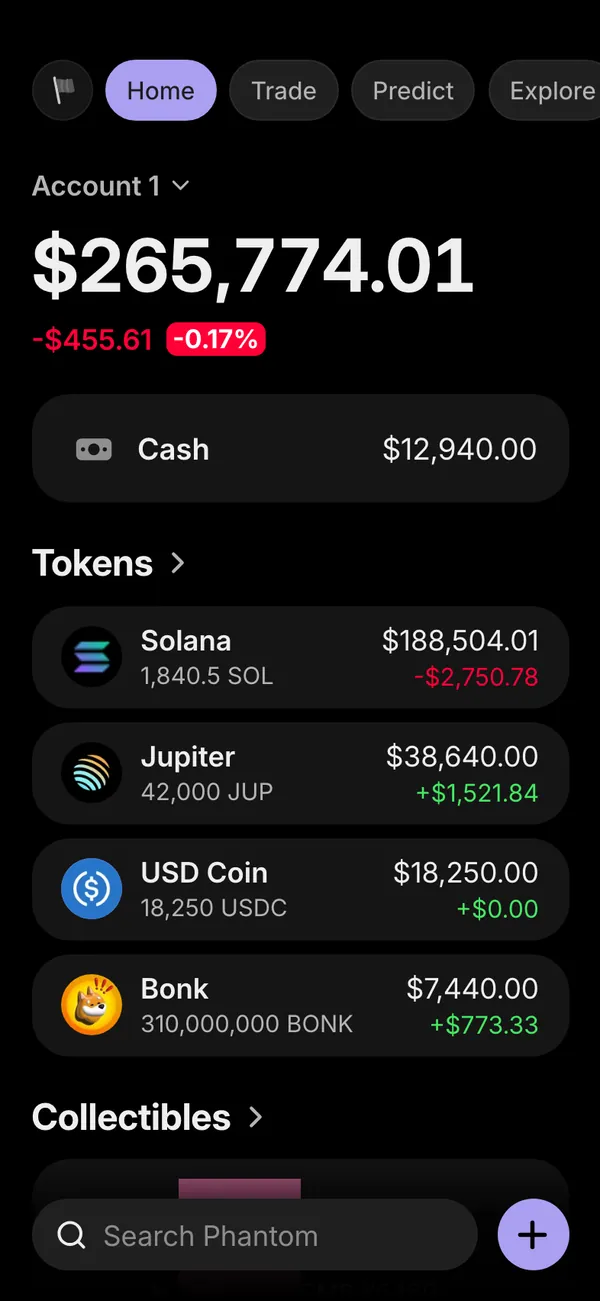
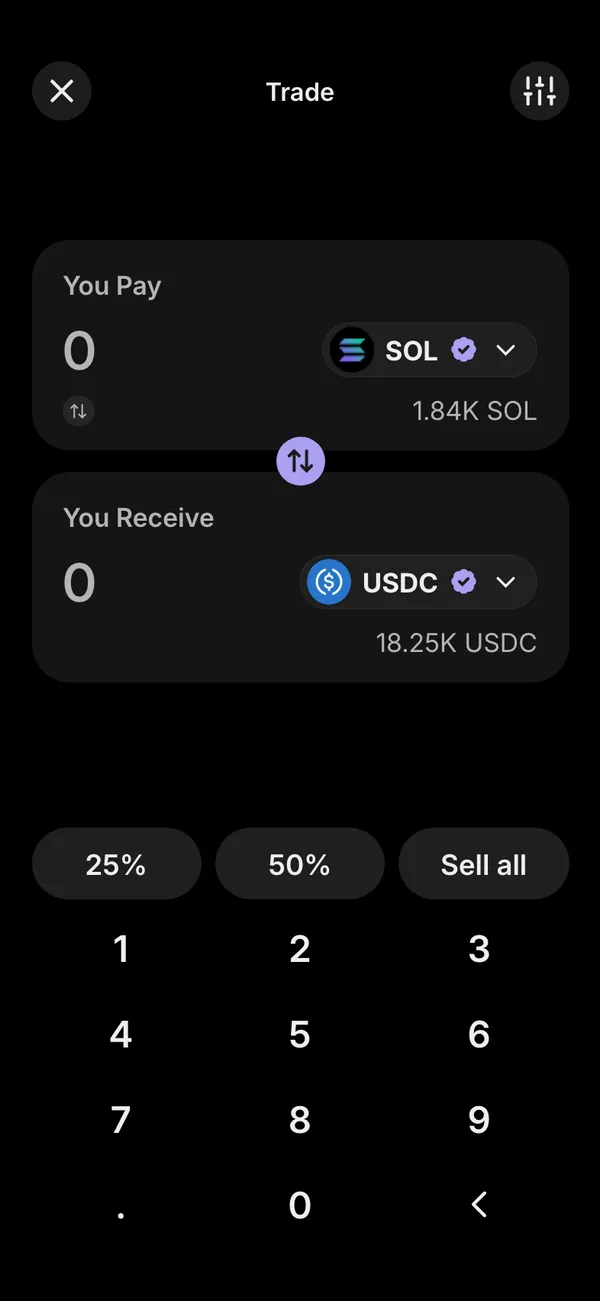
What installing a fake app does
A phone app in MaxLarp does not stay in a browser tab. When you add it to your home screen, it appears as its own app with its own icon and name, opens full screen and sends its own notifications.
That matters on camera. A home screen with the right icons says more than a screenshot ever could, and a tap on the icon opens the screen your character would see.
Apps that make a convincing home screen
Different stories need different icons. A few combinations that work:
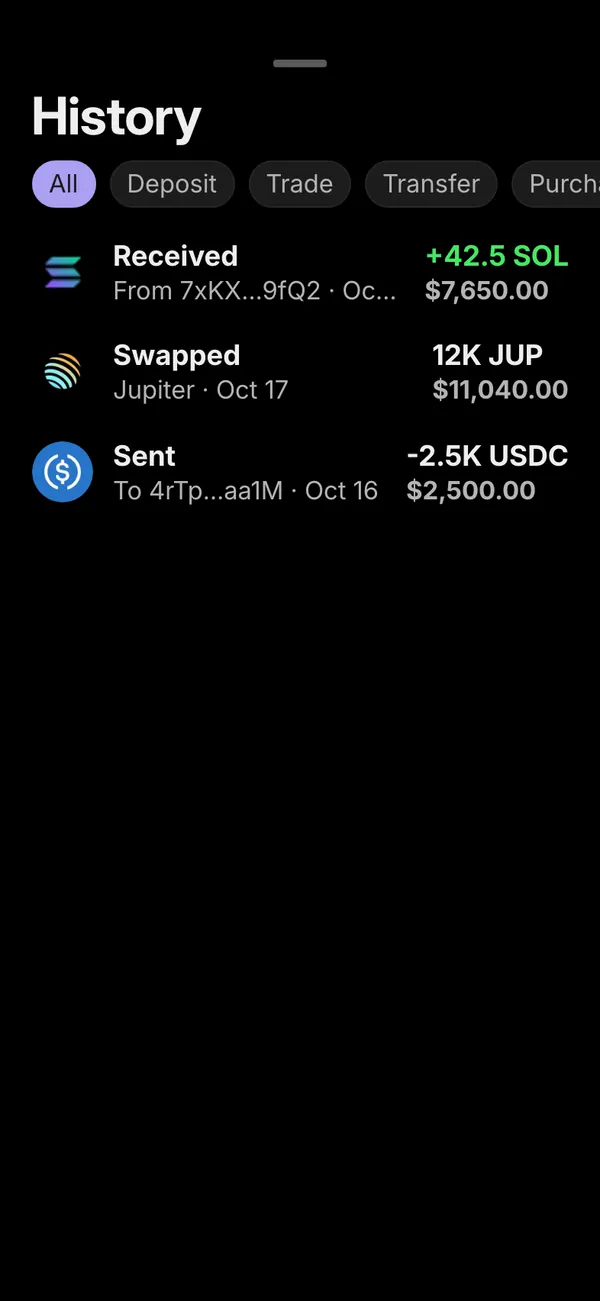
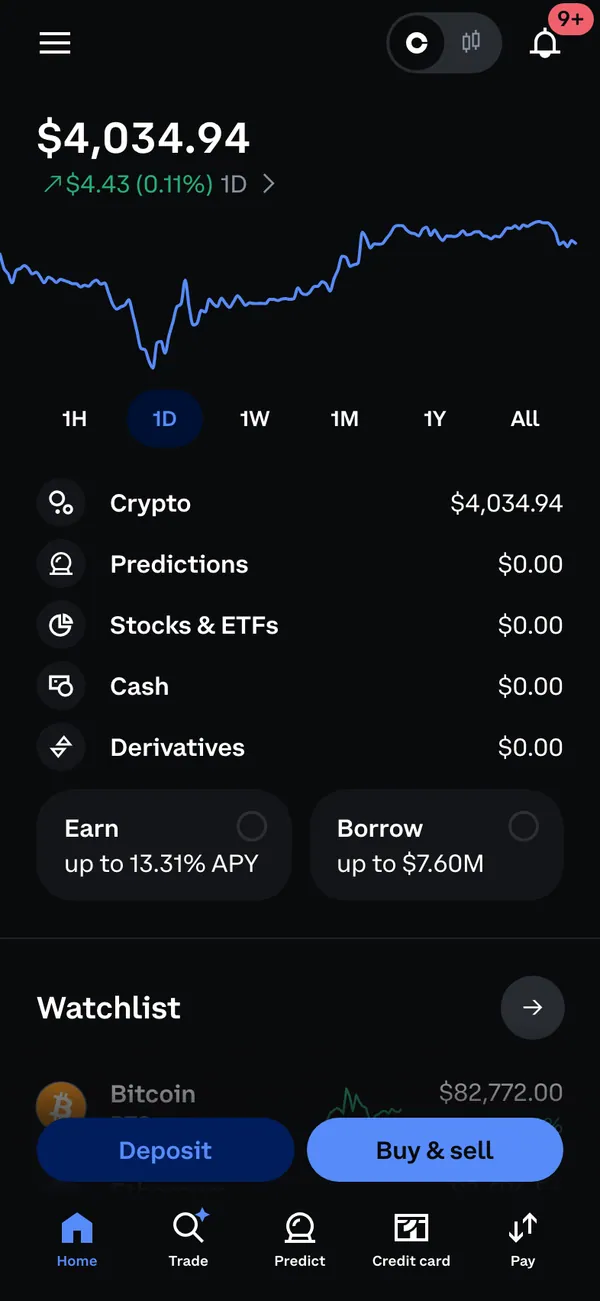
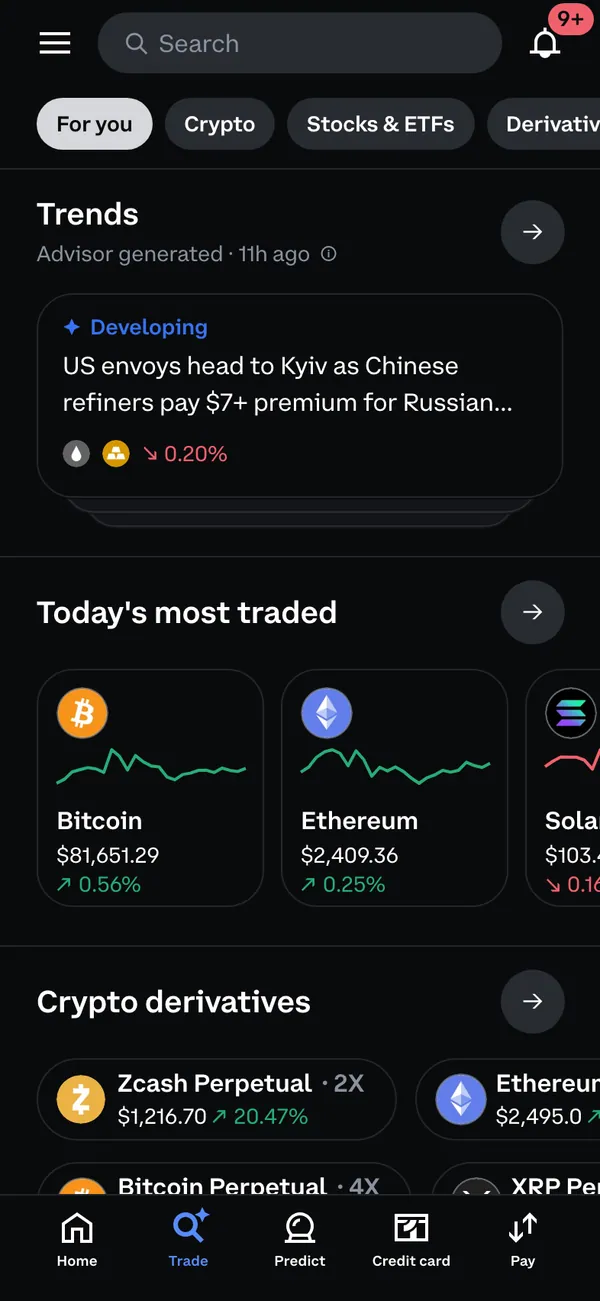
- A crypto trader: Phantom for the Solana wallet and Coinbase for the exchange.
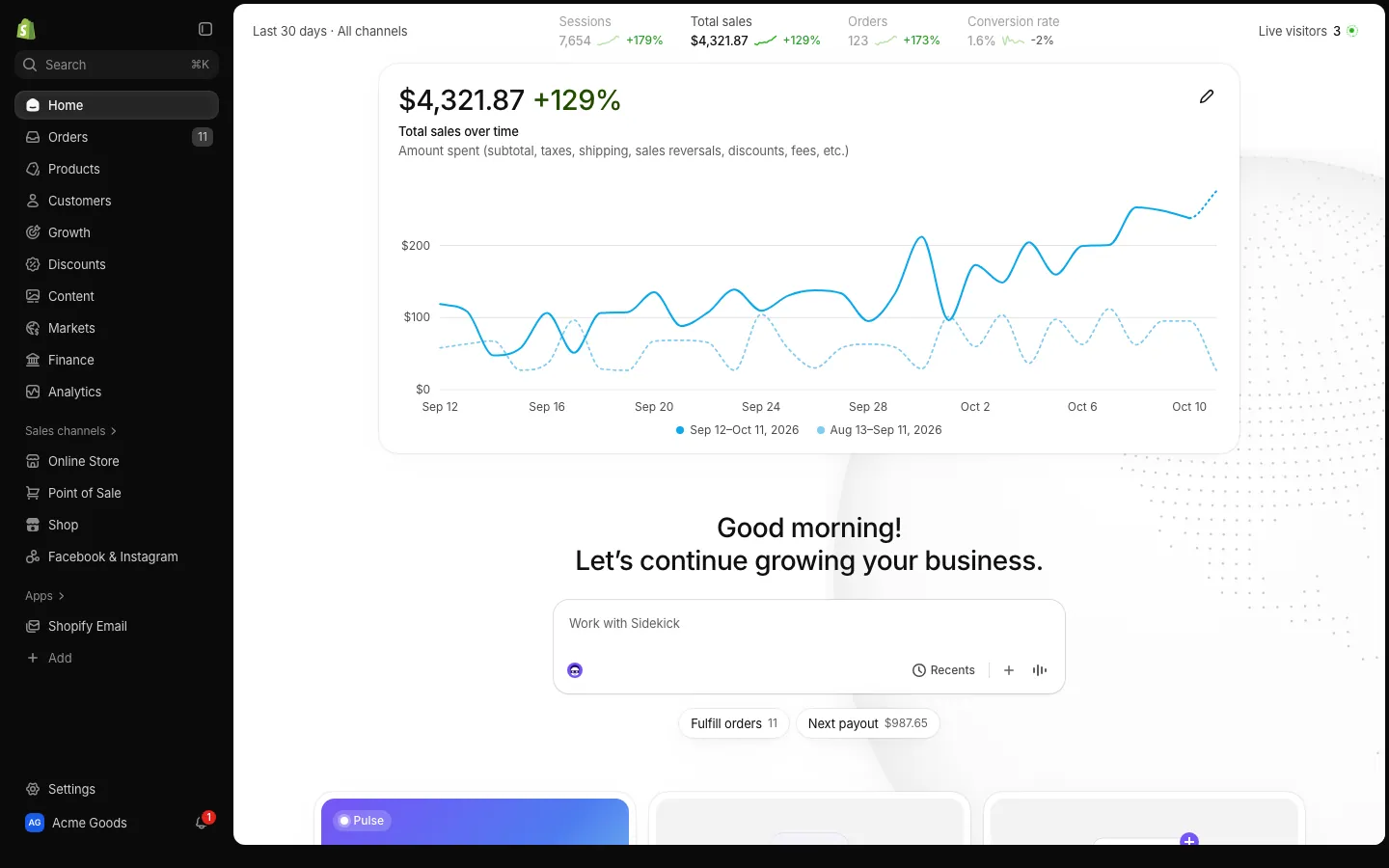
- A store owner: Shopify and Stripe side by side, with the order sound ready.
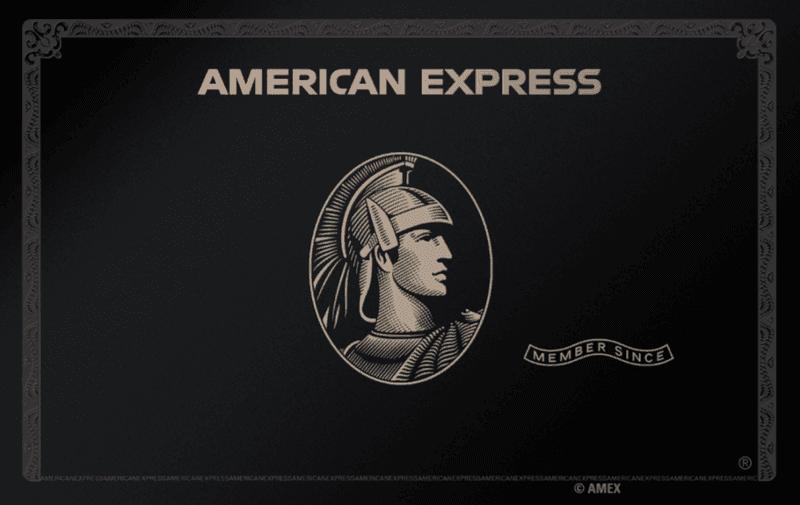
- A high spender: Apple Wallet plus Amex for the card and its alerts.
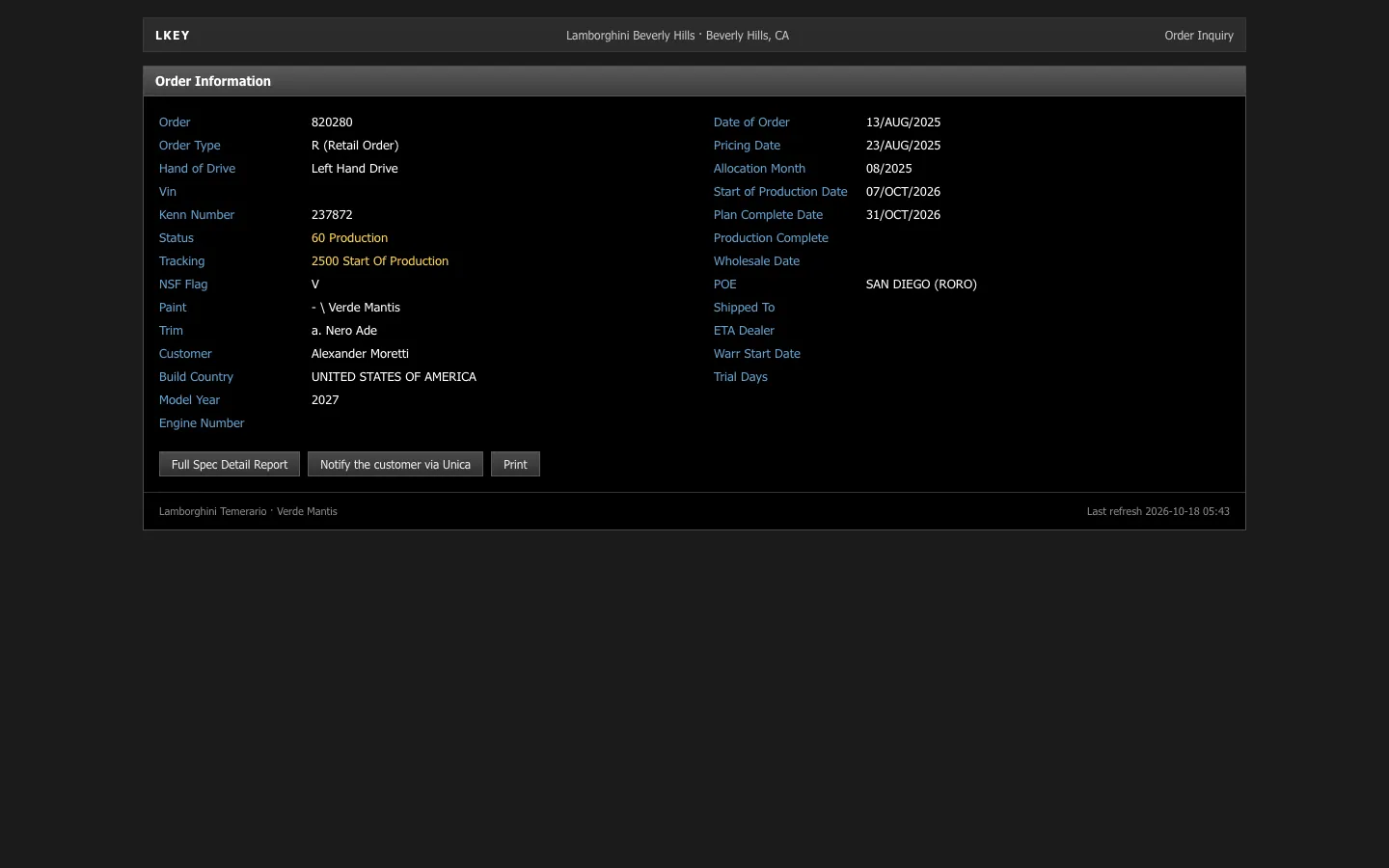
- A car buyer: a Lamborghini order tracker next to the money apps.
Some apps, such as Exodus and Twitch, run in a desktop browser only. The phone apps are the ones that install to the home screen.
Install fake apps on your iPhone
- 1Open the app's page on your iPhone and add it to your home screen.
- 2Check the icon and name on the home screen. That is how the app will look in your video.
- 3Open it from the icon, allow notifications if you want live alerts, and set up your persona.
- 4Repeat for each app in the story you are telling.
- 5Arrange the icons the way your character would, then film the home screen and the apps.
Notifications and home-screen apps need iOS 16.4 or later.
Styling the home screen for camera
- Keep the layout tidy. Put the money apps on the first page, together with the dock.
- Choose a wallpaper that suits the character. A calm dark one makes icons pop.
- Remove real apps that give you away, such as a banking app with your real name on a badge.
- Check the badges and the clock. A home screen at a sensible time reads as real.
- Use Do Not Disturb so only the alerts you want arrive during the take.
- Film a short tour: swipe, open an app, go back. A tour sells the whole phone.
A home screen for each kind of video
The layout can follow the format you are shooting.
- A reel: one page of money apps, the dock clear, and a quick swipe between two icons.
- An ad or demo: only the app you are promoting, in the middle of the first row.
- A skit: a deliberately cluttered screen, with the one important icon easy to find.
- A film scene: a believable mix of money, travel and everyday apps that matches the character.
Whatever the format, check the screen the phone wakes to. The first thing the viewer sees should be the page you meant to show, not a leftover from yesterday's take.
Keep every app telling the same story
Icons are the surface. What sits behind them should agree. One fake persona drives each app, so a name, a city and a currency show up everywhere. Turn on live mode, and the fake payment notifications on iPhone will arrive from the same story.
For crypto, see the fake Phantom wallet guide, and for cards, the fake Apple Wallet guide.
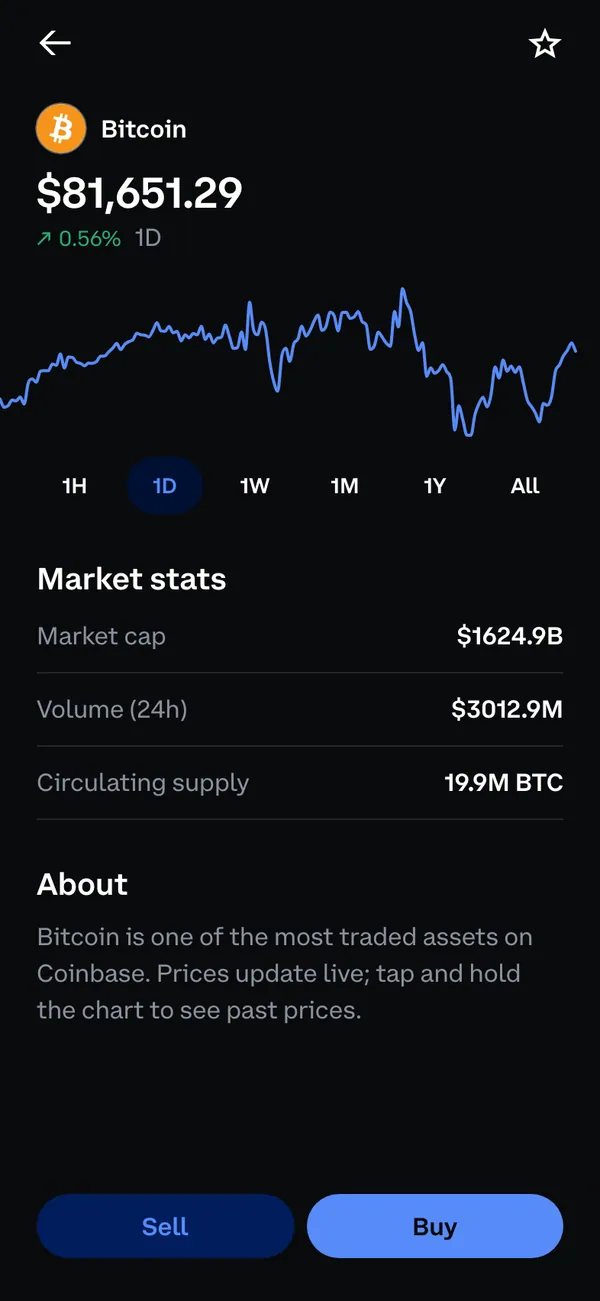
The apps in this post




Questions
Does each fake app get its own icon?
Yes. When you add a phone app to your home screen, it appears as its own app with its own icon and name, and it sends its own notifications.
What iOS version do I need?
You need iOS 16.4 or later. Notifications from home-screen apps depend on it, and the app must be added to the home screen rather than kept as a Safari tab.
Do all MaxLarp apps install on the iPhone?
Apps marked as iPhone apps do. A few run in a desktop browser only, and some make share images. Each app page tells you how it runs.
Are the fake apps legal to use?
As props in videos and skits they are fine. They are not the real apps, hold no real money and are not affiliated with the brands they imitate. Do not use them to deceive anyone in a real transaction.
Every number on MaxLarp is fictional. Not affiliated with any brand shown. Acceptable use